




















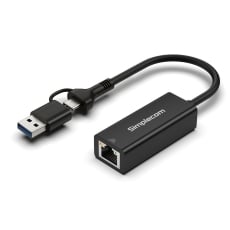
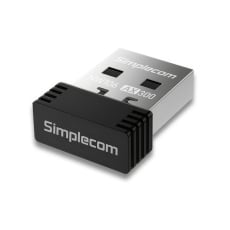
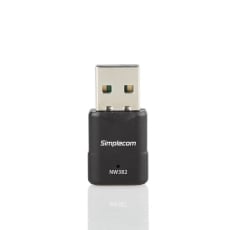
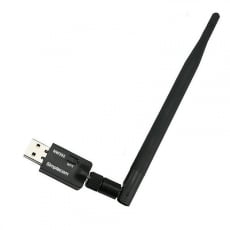
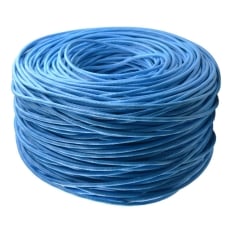
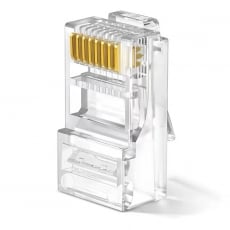
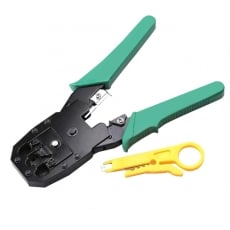
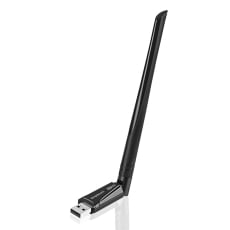
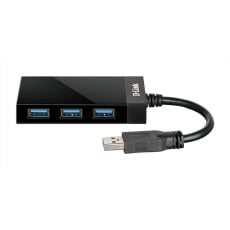
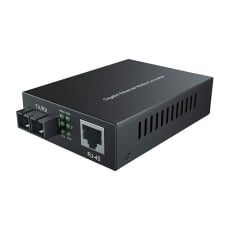
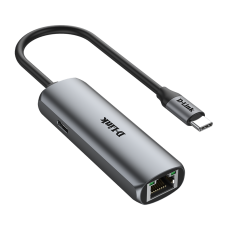







Ethernet Cables and Wi-Fi Adapters for Sale
Depending on your wants and needs, there are two main ways to connect your computer to the Internet.
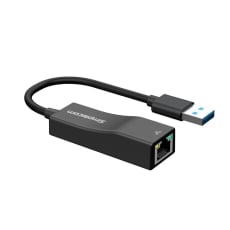
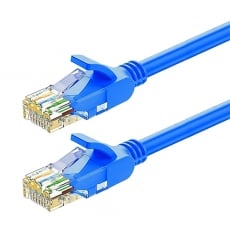
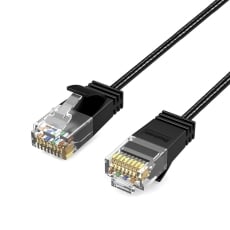
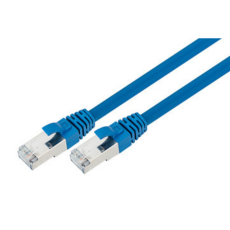
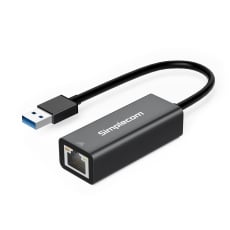
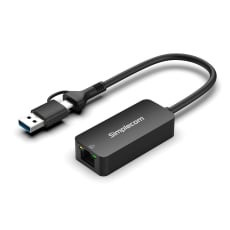
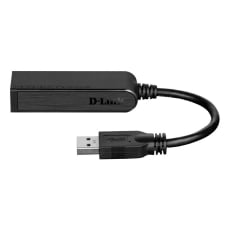
Ethernet cables are the ideal choice if you want to maintain a reliable, fast, and solid Internet connection.
Or, if you prefer to work wirelessly without being constrained by the length of a network cable, a Wi-Fi connection is preferable.
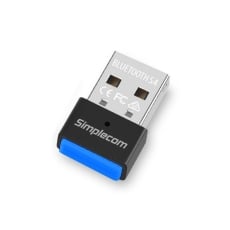
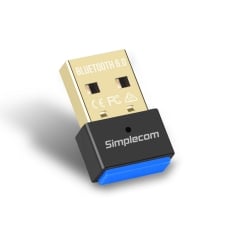
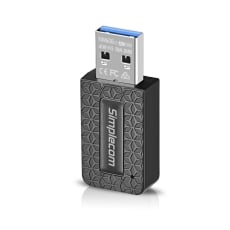
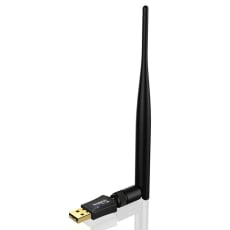
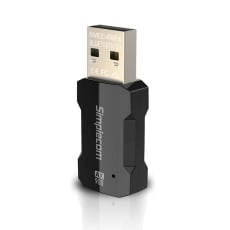
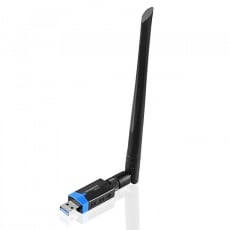
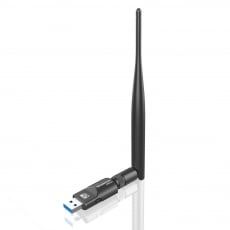
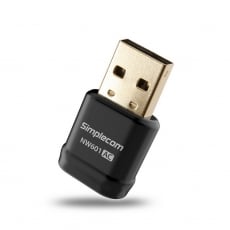
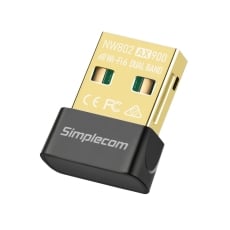
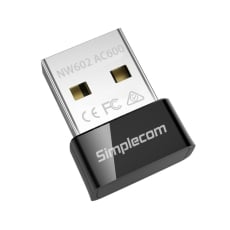
Even if your computer is older and has no built-in wireless capabilities, you can still connect to your router wirelessly by using a plug-in USB Wi-Fi adapter.
Ethernet Cables and Wi-Fi Adapters FAQs
Where is the Ethernet cable on Mac?
On a Mac, the Ethernet outlet is usually placed on the computer’s side or the back.
And if you still can’t find it, you should know that many Mac computers do not have outlets for connecting Ethernet cables. For example, these models have no Ethernet cable support:
- MacBook Pro
- MacBook Air
Why is my ethernet cable not working?
If your Ethernet cable is correctly plugged into the Ethernet outlet (either on your computer or on the router itself), there should be a tiny green diode next to the outlet that blinks.
If you have no connection, despite the cable being plugged in, try plugging it into another port of your network router. If it still does not work, try replacing your cables.
It is also a good idea to verify that your computer’s Ethernet setting is activated.
Are Ethernet cables waterproof?
While Ethernet cables with an IP7 rating can get wet, standard Ethernet cables are primarily designed for indoor use and are, therefore, not waterproof.
If you have a standard Ethernet cable, do not place it outside or any other place where it runs the risk of coming into contact with water.
What happens if water gets into an Ethernet cable?
If water gets into your indoor-only Ethernet cable, the water will damage the fibre optic wiring, weakening the transmitted data signal.
A wet cable will never dry out, and as such, the data transmission lag caused by the water is permanent.
How can I tell what Ethernet cable I have?
The version of your Ethernet cable is stamped on the cable’s sheath (i.e. the protective cover that protects the conductors inside of it).
How do I connect ethernet cables?
To connect an Ethernet cable, you need to plug in one end of your Ethernet cable into your computer’s Ethernet outlet and the other end into your router’s corresponding Ethernet outlet.
Can I connect multiple Ethernet cables?
If you want to connect multiple Ethernet cables, there are two primary approaches.
The first one is to use an “Ethernet coupler.” This is a type of connector that allows you to connect two cables and
The second and more straightforward approach is to join the cables indirectly through the use of a network switch.
However, please bear in mind that since network switches often require AC power, you will need to place your network switch close to a power outlet.
What are the different types of Ethernet cables?
There are five different categories (abbreviated as “CAT”) of Ethernet cables:
- CAT 5
- CAT 5E
- CAT 6
- CAT 6A
- CAT 7
Out of all these categories, CAT 7 is the fastest category, although CAT 5 and CAT 5E are the most commonly used ones.
Generally speaking, the higher the number, the faster the cable can transfer data.
If a category contains the letter “E” at the end, it means that cables belonging to that category are more efficient than the standard type - e.g. a CAT 5E cable is more efficient than a CAT 5 one.
What’s the difference between CAT 5E and CAT 6 Ethernet cables?
An updated version of the standard CAT 5 cable, CAT 5E cables can transfer data at speeds of up to 1000 Mbps - 10 times more than a CAT 5 one.
CAT 6 cables can transfer data at even higher speeds - 10,000 Mbps. If you’re working in an environment where there’s lots of equipment that causes signal interference, a CAT 6 cable is a worthwhile investment.
What are some Ethernet cable advantages and disadvantages?
The biggest advantage of an Ethernet connection is that the signal speed is around 10 Gbps - significantly faster compared to Wi-Fi’s 1000 Mbps.
In addition, unlike Wi-Fi, Ethernet is not as susceptible to radio waves and other forms of interference that affect your overall Internet speed.
The crux of this speed is that there must be a physical connection between your router and your computer. If your computer and your router are in two separate rooms, this can be difficult.
Are CAT 5E cables backwards compatible with standard CAT5 cables?
CAT5E cables are identical to their CAT5 counterparts, with the only exception being that Cat 5E cables contain four pairs of copper wire, as opposed to the two that CAT 5 ones have.
Can a CAT 6 Cable Be Used On a CAT 5 Network?
Yes - a CAT 6 cable can be used on a CAT 5 network, as it is backwards compatible with CAT5.
What is an RJ45 connector?
The RJ45 connector is a connector type that consists of 6 contact points. The most common use for an RJ45 connector is a method to connect computers to a Local Area Network (or LAN).
Does the length of an Ethernet cable matter? How long can an Ethernet cable be without losing speed?
Generally speaking - a long Ethernet cable has no effect on network speed. However, with that said, there is a limit of around 90 meters.
Can Ethernet cables go bad?
Yes, after continuous long-term use, an Ethernet cable will need to be replaced, particularly if you experience frequent loss of connection or interruptions.
Some people hide cables behind furniture, but it’s important to know that if the cable is bent or pinched excessively, the cable’s jacket can rupture and damage the internal copper wires.
If your Ethernet, HDMI or coaxial cable has visible damage on it, consider it a sign to replace your cable.
Why does my Ethernet cable not fit into my wall socket?
If you are experiencing issues trying to fit the cable into your wall socket, it could be because the socket is too small to fit your networking cable.
The socket itself could also be broken. If this is the case, try to plug your cable into a different socket.
For more solutions to an Ethernet cable that will not fit into your wall socket, please consult this guide from Vergizmo.com.
My Ethernet cable keeps disconnecting - what should I do?
Many Ethernet cables are built with a special locking clip. Once the cable is securely connected to the socket, the locking clip makes a faint clicking sound.
If this locking clip gets bent or snaps off, the cable might not be connected to the socket properly.
What is a USB Wi-Fi adapter used for, and what are the benefits.?
If you want to connect a device without Wi-Fi support to a wireless network, a USB Wi-Fi adapter allows the device to communicate with the wireless router.
The most significant Wi-Fi adapter benefit is that it’s quick and painless to set up.
By plugging the adapter into one of your computer’s USB slots, you get a reliable wireless connection - without having to install complicated internal hardware.
This makes Wi-Fi adapters highly cost-effective, especially if the computer you are attempting to use is older.
What should I think about when buying a USB Wi-Fi adapter?
If you’re going to play video games or stream video online, you should choose an adapter capable of transferring at least 500 Mbps or more.
Aside from that, make sure you choose a USB adapter with the same security protocol as your router. You can find the router’s security protocol by logging into its configuration dashboard (the address is usually stamped somewhere on the router itself).
Depending on the router you have, it will have one of the following protocols:
- WEP (Wired Equivalent Privacy)
- WPA (Wi-Fi Protected Access)
- WPA2
Can I have 2 Wi-Fi adapters running at the same time?
It is possible to run two Wi-Fi adapters simultaneously if you want to, e.g. connect two wireless devices on the same computer or to multiple hosts.
Be advised, however, that doing this might require the installation of additional third-party software.
How far can a Wi-Fi signal travel?
The Wi-Fi signal’s travel distance depends on 3 primary factors:
- Frequency
- Router placement
- Any physical obstructions that might block the signal (e.g. thick concrete walls)
For example, with a 2.4 GHz frequency, the signal can travel as far as 45 meters, while a signal with a 5 GHz frequency only has a reach of 15 meters.
But the placement of your router also affects your role - if you place your router in an area that is blocked by walls and other objects, you might experience a low signal strength or even no signal at all.
Another way to extend the Wi-Fi range is to buy a Wi-FI booster (also known as a wireless range extender), which bridges the gap between your computer and your wireless router.
Will a Wi-FI adapter increase my signal?
A Wi-Fi adapter is not only the easiest method to increase your signal - but it’s also the cheapest.
The Wi-Fi adapter is especially helpful if you are using an older computer that lacks built-in support for Wi-Fi.
Why won’t my Wi-Fi adapter detect my network?
If, for some reason, the adapter doesn’t detect your network, it could be because the Wi-Fi has been disabled or blocked on your computer.
To solve this, enable the Wi-Fi and wait for a couple of minutes - eventually, the Wi-Fi should function as intended.
If that still does not solve the problem, try connecting the adapter to a different USB port on your computer.
Also, this tutorial guide from tp-link.com contains some more solutions to how to connect to your wireless network.